
How to type in two languages on your iPhone
If you write in two languages, iPhone gives you two ways to do it: switch keyboards as you go, or use one keyboard, such as CorrectMe, that checks both at once.
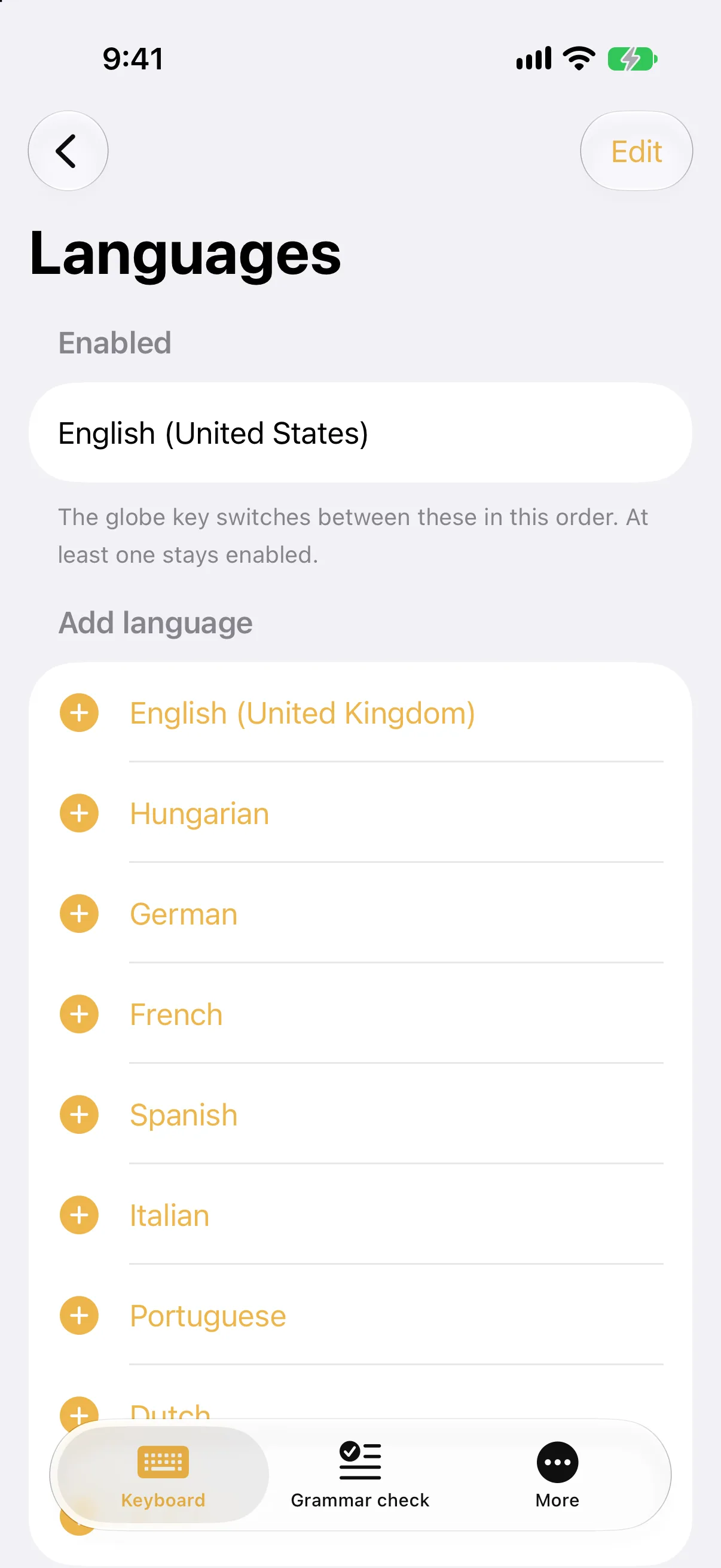
To type in two languages on iPhone, either add a keyboard for each language and switch with the globe key every time you change language, or use one keyboard that checks both. CorrectMe, an AI keyboard app for iPhone by Teleprompter LLC, checks every one of its 9 languages you enable at once, so you do not switch keyboards between conversations.
The problem with switching
The usual way to write two languages on iPhone is one keyboard per language. That works, but each keyboard checks its own language only. Say you chat with a colleague in English and with your family in Spanish. Every time you move from one conversation to the other you have to switch keyboards with the globe key first. Forget, and you type “nos vemos mañana” on the English keyboard: the Spanish words look like typos, and autocorrect rewrites them into English ones.
So you end up switching many times a day, fixing words autocorrect broke, or turning autocorrect off. The same happens, more often, if you mix languages inside one message.
Apple’s keyboard
Add each language in Settings > General > Keyboard > Keyboards and switch with the globe key, as in the steps on this page. A tap moves to the next keyboard; touching and holding the globe shows the whole list. For some language pairs, recent versions of iOS can suggest words from both languages on one keyboard, but which pairs are covered is up to Apple, and many are not. Apple’s steps for adding keyboards are in Add or change keyboards on iPhone on Apple Support.
One keyboard for both languages
A keyboard that checks several languages at once removes the switching. CorrectMe works this way.
You enable the languages you write in, and autocorrect checks each word against every enabled dictionary. A word that is correct in any of them is left as you typed it. As you write, CorrectMe notices which language the recent words belong to and leans its corrections toward that language, so a typo in a Spanish sentence is fixed into Spanish, and a typo in an English sentence into English.
To set it up:
- Add CorrectMe in Settings > General > Keyboard > Keyboards > Add New Keyboard.
- In the CorrectMe app, open the Keyboard tab and tap Languages.
- Under Add language, tap your second language. It joins the Enabled list.
- Set Shown first to the layout you want when the keyboard opens.
The dictionaries are part of the app and autocorrect runs on your iPhone, with no Full Access needed. CorrectMe has dictionaries for English, Hungarian, German, French, Spanish, Italian, Portuguese, Dutch and Polish.
Letter layouts
Each language keeps its own letter layout: QWERTZ for German and Hungarian, AZERTY for French, an ñ key for Spanish, and umlaut keys for German. Accented letters are on a long press in every layout. When more than one language is enabled, the space bar shows the layout on screen, such as EN or DE.
On iPhones with a Home button, CorrectMe’s globe key steps through its languages. On iPhones with Face ID, the globe below the keyboard belongs to iOS and switches keyboards, so CorrectMe opens on the language under Shown first. Because autocorrect covers all your languages at once, the layout on screen matters mainly for special letters.
Emoji search in both languages
CorrectMe’s emoji search uses keywords in English and in every language you enable, so with Spanish enabled, “corazón” finds the same hearts as “heart”.
Add a second language to Apple's keyboard
Open the Keyboards list
Open Settings and go to General > Keyboard > Keyboards.
Add the second language
Tap Add New Keyboard and choose the language. Some languages ask you to pick a layout, such as QWERTY or QWERTZ.
Put the two next to each other
Tap Edit and drag your two language keyboards to the top of the list, so the globe key moves straight between them.
Switch while you type
Tap the globe key to change language. Autocorrect and predictions follow the keyboard that is showing.
Questions
- Why does autocorrect change words from my other language?
- A keyboard that checks one language at a time treats words from the other language as typos. Switch keyboards first, or use a keyboard that checks both languages together.
- Can I type two languages without switching keyboards?
- For some language pairs, recent versions of Apple's keyboard can suggest words in both. For other pairs, or if you want autocorrect in both, use a keyboard like CorrectMe that checks every enabled language at once.
- Which languages does CorrectMe support?
- English (US and UK layouts), Hungarian, German, French, Spanish, Italian, Portuguese (Brazilian dictionary), Dutch and Polish. You can enable any combination.
- Can I turn autocorrect off for just one of the languages?
- In CorrectMe, yes: Keyboard > Typing > Autocorrect languages has one switch per language. Its words still count as correct, so they are not changed into the other language.
- Do I need two keyboards to type in two languages on iPhone?
- With Apple's keyboard, usually yes: one per language, switched with the globe key. CorrectMe holds all 9 of its languages in one keyboard and checks every enabled one at once.