
How to switch keyboards on your iPhone
On iPhone, the globe key moves between every keyboard you have added, Apple's or a third-party one such as CorrectMe. A tap goes to the next one; touching and holding it lets you pick.
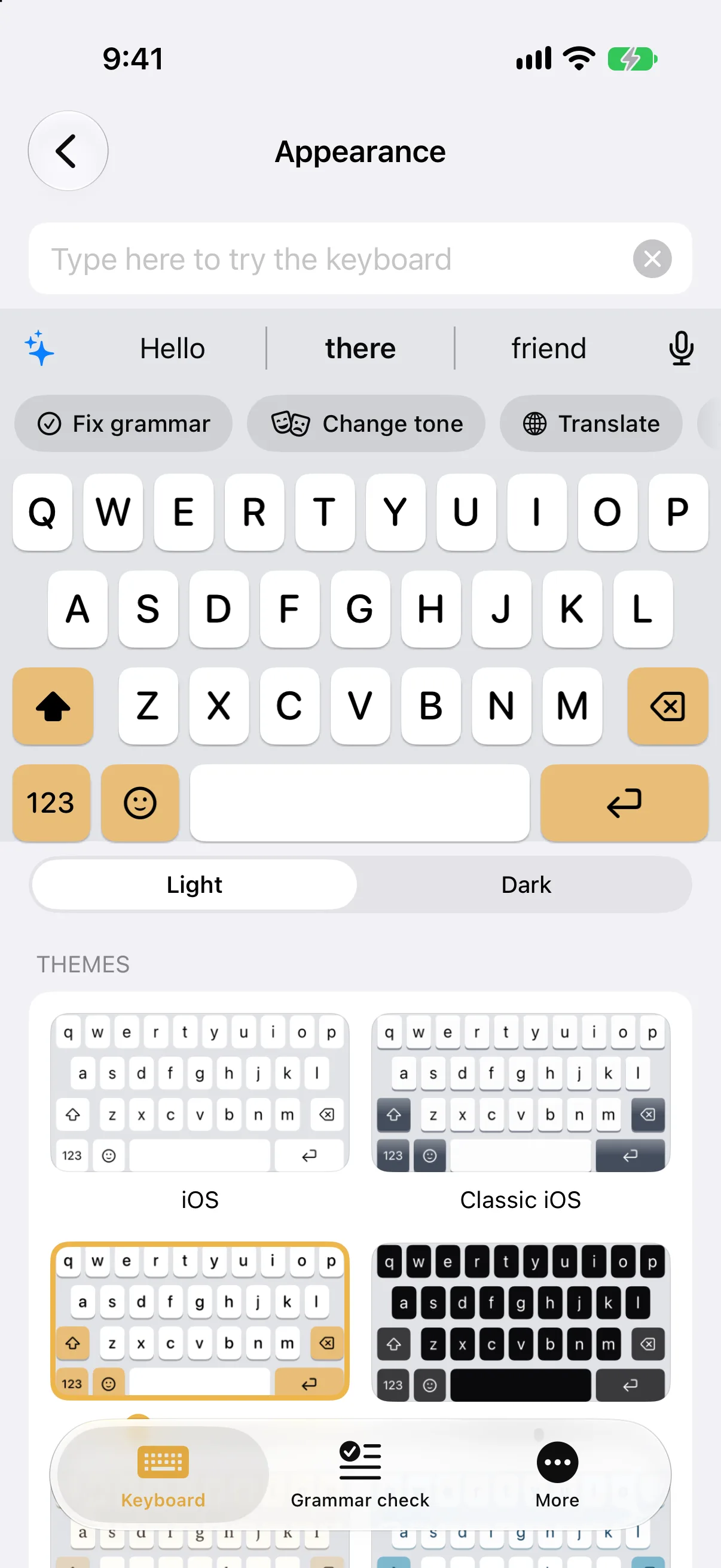
To switch keyboards on iPhone, tap the globe key to move to the next keyboard, or touch and hold it to pick one from a list. On iPhones with Face ID the globe is below the keyboard at the bottom left; on iPhones with a Home button it is in the keyboard’s bottom row. The order follows Settings > General > Keyboard > Keyboards. CorrectMe, an AI keyboard app for iPhone by Teleprompter LLC, holds all of its 9 languages in one keyboard, so it needs only one place in that list.
Where the globe key is
The globe’s position depends on your iPhone.
| iPhone | Where the globe is |
|---|---|
| Face ID (no Home button) | Below the keyboard, bottom left, next to the dictation microphone |
| Home button, such as iPhone SE | Inside the keyboard, in the bottom row |
On Face ID iPhones, the globe below the keyboard belongs to iOS, so it is there whichever keyboard you are using, Apple’s or another app’s. On Home button iPhones, each keyboard draws its own globe key in its bottom row.
Tap or hold
A tap moves to the next keyboard in your list. With three keyboards, three taps bring you back where you started.
Touch and hold opens the list of all your keyboards. Slide to the one you want and lift your finger. This is quicker when you have more than two keyboards, and it is the reliable way to reach a third-party keyboard you just added.
The order of both follows Settings > General > Keyboard > Keyboards. Put the keyboards you use most next to each other. Apple’s own instructions are in Add or change keyboards on iPhone on Apple Support.
When iOS switches for you
You may notice your third-party keyboard is replaced by Apple’s in some places. That is iOS, not a fault in the keyboard:
- Password and other secure fields always use Apple’s keyboard.
- Phone number pads use Apple’s keypad.
- An app can choose not to allow third-party keyboards at all.
When you move to a normal text field, the keyboard you picked comes back.
Switching languages inside CorrectMe
CorrectMe holds all its languages in one keyboard, so you add it to the iOS list once and choose its languages in the app under Keyboard > Languages.
How you change the letter layout on screen depends on the iPhone:
- Home button iPhones: CorrectMe shows its own globe key. Each tap steps through the languages you enabled, in the order on the Languages screen. A tap after the last one moves on to your next iOS keyboard.
- Face ID iPhones: the globe below the keyboard is the iOS one and switches between keyboards. CorrectMe opens on the language set under Shown first on the Languages screen.
Either way, you often do not need to switch at all. Autocorrect checks words against every language you enabled at once, so you can answer one conversation in English and the next in Spanish on whichever layout is showing. When more than one language is enabled, the space bar shows which layout is on screen, such as EN or ES.
Switch to another keyboard
Open any text field
Tap into a message, note or search box so the keyboard appears.
Find the globe key
On iPhones with Face ID it is below the keyboard, at the bottom left. On iPhones with a Home button it is in the keyboard's bottom row, left of the space bar.
Tap it to go to the next keyboard
Each tap moves one step through your Keyboards list and wraps back to the start.
Or touch and hold it to choose
A list of your keyboards opens. Slide your finger to the one you want and lift.
Questions
- Why don't I see a globe key?
- The globe appears when you have more than one keyboard. With only your language keyboard and Emoji, the key shows a smiley face instead and opens emoji.
- How do I change the order the globe goes through?
- Go to Settings > General > Keyboard > Keyboards, tap Edit and drag the keyboards into the order you want.
- Why did my keyboard switch by itself?
- iOS uses its own keyboard in password fields and phone number pads, and some apps do not allow third-party keyboards. Your keyboard comes back in the next ordinary field.
- Does iOS remember which keyboard I used?
- Yes. It keeps the keyboard you last switched to in most apps, so you do not need to switch every time.