
How to translate while you type on your iPhone
To translate while typing on iPhone, use a keyboard with translation built in, such as CorrectMe: write your message, tap Translate, pick a language, and replace your text with the translation, in any app.
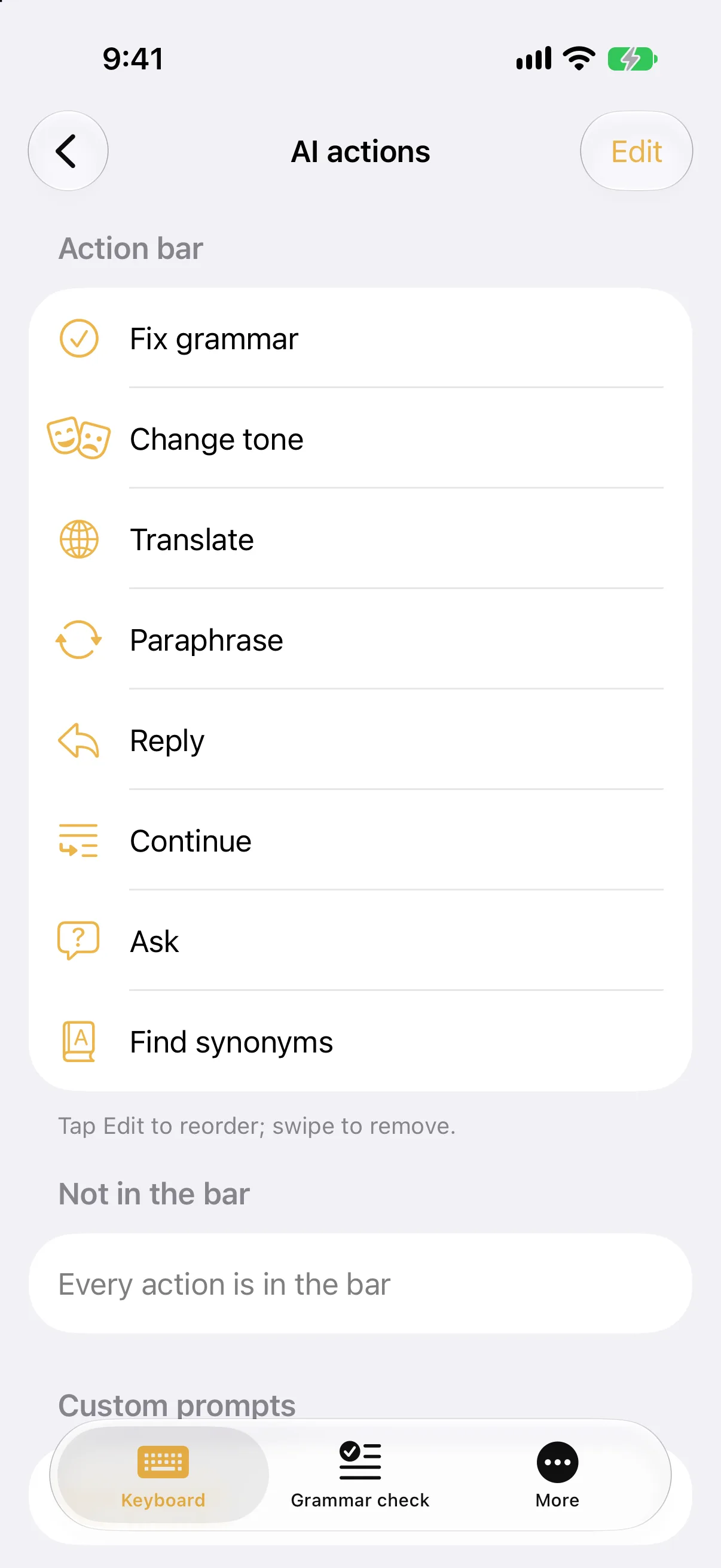
You can translate while typing on iPhone with a keyboard that has translation built in. CorrectMe, an AI keyboard app for iPhone by Teleprompter LLC, has a Translate action that turns what you wrote into one of 25 languages and variants and puts the translation straight into the text field, so you do not copy your message into a translator app and back.
Two different jobs
Translating while you chat usually means one of two things:
| You want to | How it works with CorrectMe |
|---|---|
| Send your message in another language | Write it, tap Translate, pick the language, tap Replace |
| Understand a message you received | Copy it into your text field, translate it, read it, delete it |
The first is what a keyboard does well, because your message is already in the field. The second takes an extra step: iOS keeps keyboards out of the rest of the screen, so the keyboard cannot see the conversation above it, only the field you are typing in.
Which languages are covered
Translate works with these 25 target languages and variants:
- English: American, British, Canadian
- Spanish: Spanish, Mexican Spanish
- Portuguese: Portuguese, Brazilian Portuguese
- Other European: French, German, Italian, Dutch, Swedish, Norwegian, Danish, Finnish, Greek, Hungarian, Ukrainian, Russian, Turkish
- Asian and Middle Eastern: Chinese, Japanese, Korean, Hindi, Thai, Arabic
You can write in any language; you only pick the one to translate into. The list is separate from the keyboard’s 9 typing languages, so you can translate into Japanese or Arabic even though CorrectMe has no layout for them. Polish is a typing language but not a translation target.
Tips for better translations
- Pick the variant. The English, Spanish and Portuguese variants change spelling and word choice, such as “color” or “colour”.
- Clean up first. Run Fix grammar on a rough draft before translating it; a clean source gives a cleaner translation.
- Keep both versions. Tap Insert instead of Replace to send a message in two languages.
- Undo a mistake. After Replace, Undo in the suggestion bar brings your original back until you type again.
Limits to know
- Translation runs on Apple’s on-device model on iOS 26 or later when it supports your text’s language; otherwise it goes to CorrectMe’s cloud service, which needs Full Access and a connection. Your text is sent only after you pick a language.
- Free users get 20 cloud AI actions a day; Pro, at $59.99 a year or $9.99 a month, removes the limit.
- Text can be up to 20,000 characters. Nothing is translated in password or one-time code fields, which always use Apple’s keyboard.
- CorrectMe is for iPhone with iOS 17 or later.
On a computer
To translate a paragraph without your iPhone, the free translator on this site translates up to 1,500 characters at a time into 26 languages and varieties, with no account.
Translate a message with the CorrectMe keyboard
Switch to CorrectMe
In the app you are writing in, touch and hold the globe key and pick CorrectMe.
Write your message
Type it in the language you think in. Select part of it to translate only that, or nothing to translate the whole field.
Tap Translate and pick a language
Translate is in the action row above the keys, and in the grid behind the AI button. Scroll the list of 25 languages and tap one.
Replace or insert
Replace swaps your text for the translation. Insert keeps your original and adds the translation after it, for a message in both languages.
Questions
- Can I translate messages in WhatsApp on iPhone while I type?
- Yes, with a keyboard that translates. With CorrectMe, type your reply in WhatsApp, tap Translate, pick the language and tap Replace. The same works in Messages, Mail, Slack and other apps that allow third-party keyboards.
- Can the keyboard translate a message someone sent me?
- Not directly: iOS lets a keyboard read only the field you are typing in. Copy the message into your text field, translate it with CorrectMe, read it, then delete it.
- Which languages can CorrectMe translate into?
- 25 languages and variants: American, British and Canadian English, Spanish, Mexican Spanish, French, German, Italian, Portuguese, Brazilian Portuguese, Chinese, Japanese, Korean, Arabic, Dutch, Ukrainian, Russian, Swedish, Norwegian, Danish, Finnish, Greek, Hindi, Thai, Turkish and Hungarian.
- Do I have to tell it which language I wrote in?
- No. You only pick the language to translate into.
- Is translating free?
- A translation that runs in the cloud counts as one of 20 free AI actions a day in CorrectMe. Translations by Apple's on-device model do not count, and CorrectMe Pro makes AI actions unlimited.
- Does translation need Full Access?
- Cloud translation does, because iOS blocks the network for keyboards without Full Access. On iOS 26 or later, CorrectMe first tries Apple's on-device model when it supports your text's language.