
Keyboard themes you can make your own
Start from one of eight built-in themes, or build your own in the CorrectMe app with your colors, a gradient or one of your photos behind the keys.
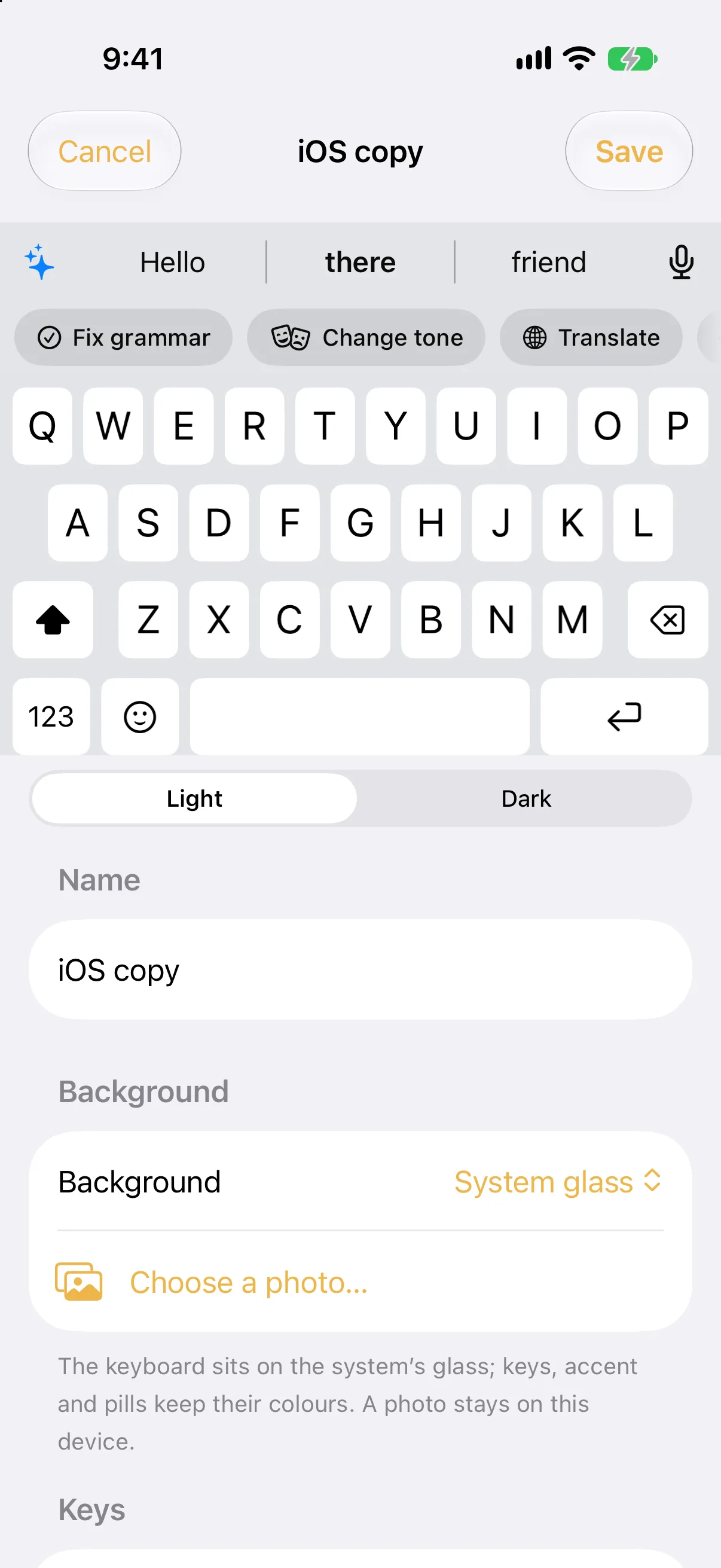
CorrectMe, an AI keyboard app for iPhone by Teleprompter LLC, comes with 8 built-in keyboard themes (iOS, Classic iOS, CorrectMe, Midnight, Paper, Ocean, Sunset and Mint) and a theme editor for your own colors, gradients, photo backgrounds, key shapes and fonts. Themes are free and work without Full Access.
Which themes are built in?
The gallery in Appearance starts with eight themes: iOS, which matches Apple’s keyboard, Classic iOS, CorrectMe, Midnight, Paper, Ocean, Sunset and Mint. Some have their own dark look; others look the same in light and dark mode. Tap a theme to use it.
Long-press a theme for more: Customize and Duplicate work on any theme, and your own themes can also be renamed or deleted.
What the theme editor changes
Background. Choose the system glass (the see-through iOS look), a single color, a two-color gradient from top to bottom, or a photo.
Photo backgrounds. Pick a photo, then drag and pinch to place it, and set blur and dim so the keys stay readable. CorrectMe can suggest key, label and accent colors picked from the photo; nothing changes until you tap Apply.
Keys. Letter keys and special keys (shift, delete, 123, globe, return) are styled separately: fill color, transparency, label color, pressed color, corner radius, an optional border and an optional shadow. The key shape, flat, raised or glossy, applies to every key.
Accent. The return key’s color and its label color.
Bars. The background and the icon color of the suggestion bar and action row.
Labels. The font (System, Rounded, Serif or Monospaced) and its weight, bold labels, lowercase letters when shift is off, and number hints on the top row.
Light and dark. Keep one look for both, or give the theme separate light and dark looks.
Readable by default
While you edit, CorrectMe checks the contrast of every label against what it sits on, including over a photo or the glass. If something is hard to read, a banner shows the problem and a Fix button that makes the labels black or white, or darkens the photo, wherever needed.
More appearance settings
Outside the themes, Appearance also sets the key size (Compact, Standard or Tall) and the character preview that shows while you hold a key (None, Detached or Attached). Under Bars you can hide the suggestion bar, the AI button, the mic button or the action row.
Make your own theme
Open Appearance
In the CorrectMe app, open Appearance to see the theme gallery.
Start a theme
Tap New theme under My themes, or long-press any theme and tap Customize. Built-in themes are copied before you edit them.
Change what you like
Set the background, the key colors and shape, the return key's accent, the bars and the font. The preview at the top updates as you go.
Save
Tap Save. If some labels would be hard to read, CorrectMe asks first and offers Fix and save.
Questions
- Are themes free?
- Yes. The built-in themes and the theme editor are free.
- Does my photo leave my iPhone?
- No. The photo is cropped and stored on your iPhone, where the keyboard reads it. It is never uploaded.
- Do themes need Full Access?
- No. The app saves the theme and the keyboard only reads it, which works without Full Access.
- Can the keyboard look different in dark mode?
- Yes. Turn off One look for both and edit the light and dark looks separately with the Light/Dark switch under the preview.
- Can I make the keys bigger?
- Appearance has a Key size setting with Compact, Standard and Tall.