
How to add a keyboard on your iPhone
Every keyboard on your iPhone, Apple's or another app's such as CorrectMe, is added in the same place: Settings > General > Keyboard > Keyboards. It takes about a minute.
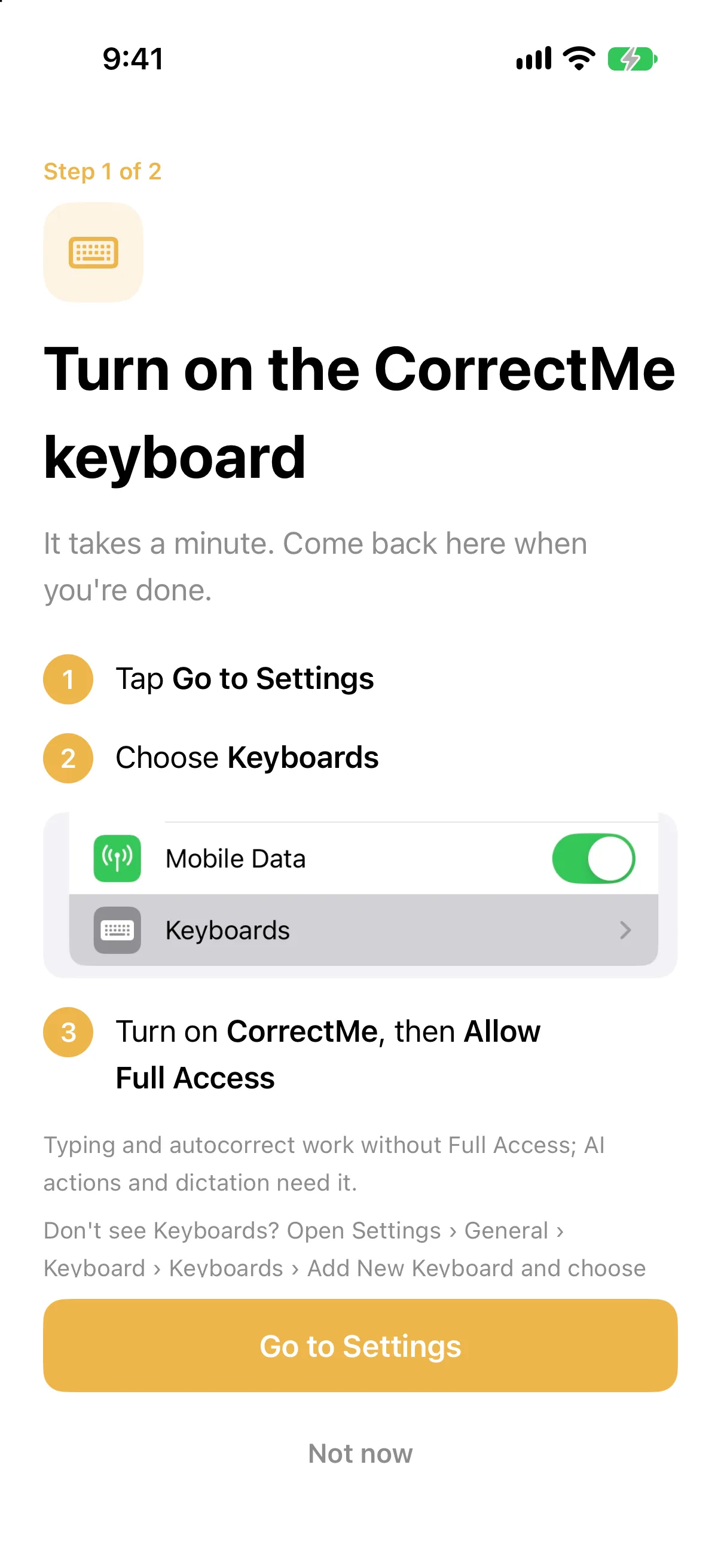
To add a keyboard on iPhone, open Settings > General > Keyboard > Keyboards > Add New Keyboard and choose it. A third-party keyboard, such as CorrectMe, appears in that list once its app is installed. The steps are the same for Apple’s language keyboards and for any App Store keyboard on iOS 17 and later. CorrectMe is an AI keyboard app for iPhone by Teleprompter LLC.
Where keyboards live in Settings
iOS keeps one list of keyboards at Settings > General > Keyboard > Keyboards. Apple’s own language keyboards, the Emoji keyboard and keyboards from App Store apps all sit there together, and the order of that list is the order the globe key steps through them.
A third-party keyboard only appears under Add New Keyboard once its app is installed. Adding it does not give it any extra access. By default it runs without network access, which is enough for typing and anything the keyboard does on the phone itself.
Apple describes the same steps in Add or change keyboards on iPhone on Apple Support.
Remove or reorder keyboards
On the Keyboards list, tap Edit in the top corner.
- To remove a keyboard, tap the red minus and then Delete. This only removes it from the list. The app stays installed, and you can add the keyboard back later.
- To change the order, drag a keyboard by the handle on the right.
Tap Done when you finish. Removing a third-party keyboard is a good first step if it misbehaves: remove it, open Settings again, and add it back.
Full Access, briefly
When you tap a third-party keyboard’s name in the list, you see Allow Full Access. It is off by default. Turning it on lets the keyboard use the network and share data with its own app, which some features need. iOS shows a warning when you turn it on, because a keyboard with Full Access could send what you type. Our guide to Allow Full Access explains what it permits and how to decide.
Adding CorrectMe
If you use CorrectMe, the app walks you through this. On the Keyboard tab, a setup card lists two steps. For the first, Turn on CorrectMe in Settings, tap Turn on the keyboard, then Go to Settings. That opens CorrectMe’s own page in the Settings app, where you choose Keyboards and turn on CorrectMe. When you come back, the card notices the keyboard is on.
The second step is Allow Full Access and try it, with a field in the app where you can switch to CorrectMe and type to check it is working. Typing and autocorrect work without Full Access; AI actions and dictation need it.
Once CorrectMe is on, its languages are set inside the app, not in the iOS list: open the Keyboard tab and tap Languages to add any of its nine dictionary languages.
Add a keyboard in Settings
Install the keyboard app first
For a third-party keyboard, install its app from the App Store. Apple's language keyboards are built in, so skip this step for those.
Open the Keyboards list
Open Settings and go to General > Keyboard > Keyboards. You see every keyboard you already have.
Tap Add New Keyboard
Apple's languages are listed first. Keyboards from apps you installed appear under Third-Party Keyboards.
Choose the keyboard
Tap it once. It is added to the list and is ready to use in every app.
Decide on Full Access
For a third-party keyboard, tap its name in the list to see the Allow Full Access switch. Leave it off unless you want features that need it.
Switch to it
Open any app with a text field and tap the globe key until the new keyboard appears, or touch and hold the globe and pick it.
Questions
- Why is my keyboard app not listed under Add New Keyboard?
- The app must be installed on this iPhone, and it must include a keyboard. If you just installed it, close Settings and open it again so the list refreshes.
- Why does my iPhone switch back to Apple's keyboard in some fields?
- iOS always uses its own keyboard in password fields and phone number pads, and an app can choose not to allow third-party keyboards. Your keyboard comes back in other fields.
- Can I make a third-party keyboard the default?
- iOS has no default keyboard setting. It keeps using the keyboard you last picked, so once you switch to it, it stays in most apps.
- How many keyboards can I add?
- You can add several. The globe key steps through them in the order of the Keyboards list, so keep the ones you use most at the top.
- Does adding a third-party keyboard give it access to what I type?
- Adding it lets it type in the fields where you use it, without network access. It can reach the internet only if you also turn on Allow Full Access, and password fields always use Apple's keyboard.