
How to change the look of your iPhone keyboard
Apple's iPhone keyboard has no themes: it follows light and dark mode and little else. To change its colors, background or keys, you use a third-party keyboard such as CorrectMe.
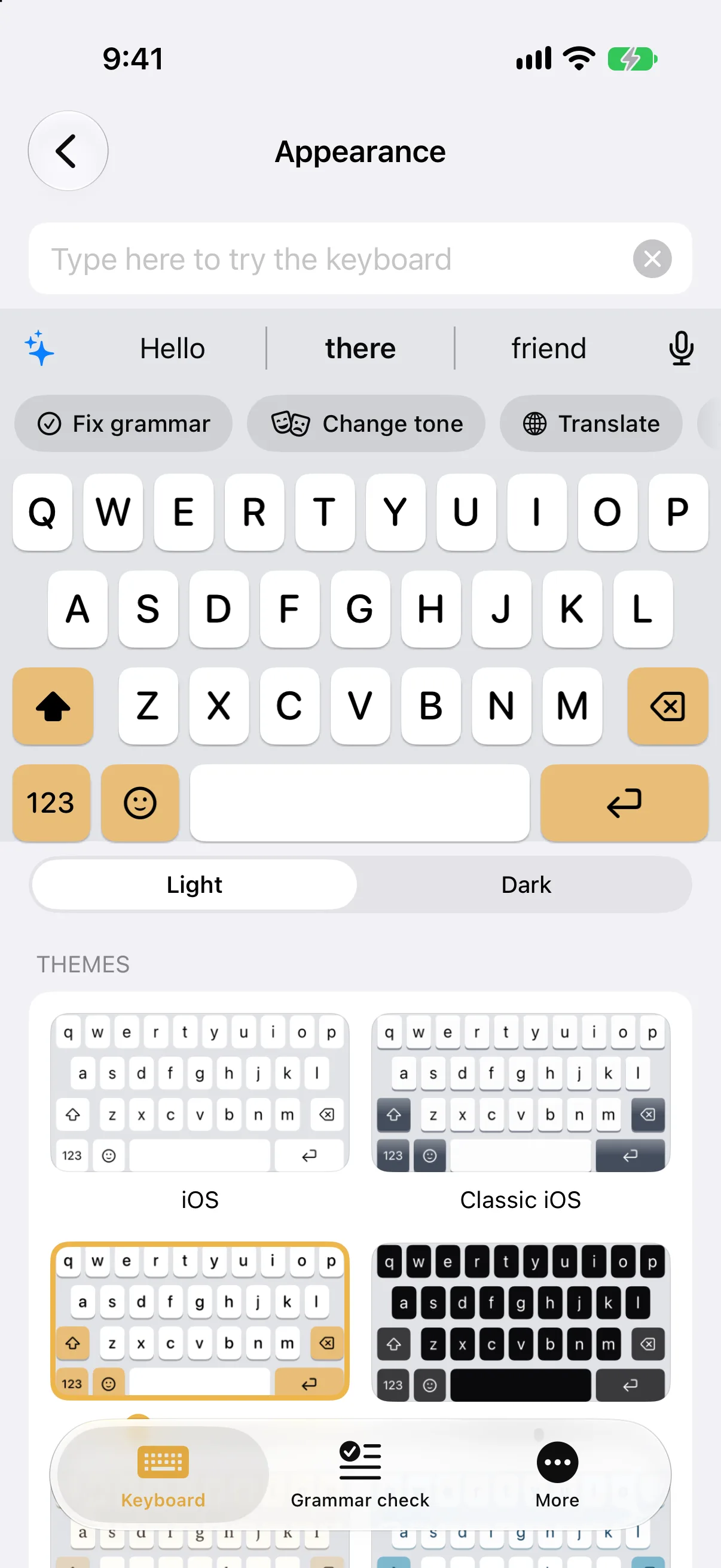
Apple’s iPhone keyboard has no theme setting: it follows light and dark mode and little else. To change the keyboard’s colors, background or keys, you install a third-party keyboard. CorrectMe, an AI keyboard app for iPhone by Teleprompter LLC, has 8 free built-in themes and a free theme editor with photo backgrounds, and themes work without Full Access.
What you can change on Apple’s keyboard
iOS does not offer keyboard themes. The settings that do change how Apple’s keyboard looks are few:
- Light or dark. The keyboard follows the system appearance, set in Settings > Display & Brightness. Choose Light, Dark or Automatic.
- Bold Text. Turning on Bold Text in Settings > Display & Brightness makes the key labels bold too.
- Lowercase keys. In the Accessibility settings for keyboards, Show Lowercase Keys controls whether letters switch between upper and lower case with Shift.
- Key sound and feel. Keyboard clicks and haptic feedback are under Settings > Sounds & Haptics > Keyboard Feedback.
None of these change the keyboard’s colors, background or key shape. For that, iOS lets you install a third-party keyboard, which can draw its keys any way it likes and is added in the same Keyboards list as Apple’s.
Choosing a keyboard for themes
Many keyboard apps offer themes, and they differ in what else they ask of you. Things worth checking:
- Whether themes need Allow Full Access. A theme is only drawing, so a keyboard should not need network access to show one.
- Whether the keyboard still does the basics well: autocorrect in your languages, predictions, and a layout you are used to.
- Whether themes are free or sold one by one.
Themes in CorrectMe
CorrectMe’s themes are in the app under Keyboard > Appearance, with a live preview of the keyboard pinned at the top and a Light and Dark switch to check both looks.
The gallery starts with eight built-in themes:
| Theme | Keys | Labels |
|---|---|---|
| iOS | Raised | System font |
| Classic iOS | Glossy | System font |
| CorrectMe | Raised | Rounded font |
| Midnight | Flat, on black | System font |
| Paper | Raised | Serif font |
| Ocean, Mint | Raised | System font |
| Sunset | Raised | Rounded font |
Tap one and the keyboard changes right away.
Making your own theme
Under My themes, tap New theme, or edit a built-in one; built-in themes are copied first, so the original stays. The editor lets you set:
- Background: system glass, a color, a gradient or a photo from your library. For a photo, you drag and pinch to place it, and blur and dim it. CorrectMe can offer colors picked from the photo. The photo stays on your iPhone, and themes work without Full Access.
- Accent color, and the background and icon colors of the bars above the keys.
- Keys: flat, raised or glossy, with a corner radius, and separate colors for letter keys and special keys.
- Labels: System, Rounded, Serif or Monospaced, in a weight you choose.
- Light and dark: separate looks for each appearance, or one look for both.
If the key labels would be hard to read on your colors or photo, CorrectMe warns you and offers a one-tap Fix.
Two more settings on the Appearance screen apply to every theme: Key size (Compact, Standard or Tall) and Character preview, which sets what shows while you hold a key.
Get a keyboard theme with CorrectMe
Install and turn on CorrectMe
Install the app, then go to Settings > General > Keyboard > Keyboards > Add New Keyboard and choose CorrectMe.
Open Appearance
In the CorrectMe app, open the Keyboard tab and tap Appearance. A live preview of the keyboard sits at the top.
Pick a theme
Tap a theme in the gallery. The preview and the keyboard change at once; use the Light and Dark switch to check both looks.
Or make your own
Under My themes, tap New theme to choose the background, colors, key shape and font yourself.
Questions
- Can I change the color of Apple's keyboard?
- Only between light and dark. It follows the system appearance in Settings > Display & Brightness. There is no setting for other colors or backgrounds.
- Can I use my own photo as the keyboard background?
- Not with Apple's keyboard. In CorrectMe, create a theme and choose Photo as the background; you can move, zoom, blur and dim it so the keys stay readable.
- Are CorrectMe themes free?
- Yes. The built-in themes and your own themes are free. Pro adds dictation and unlimited AI actions.
- Will a dark theme still work in light mode?
- CorrectMe themes can have separate light and dark looks that follow your iPhone's appearance, or one look for both.